Last updated: 5 September 2026
Onimusha: Way of the Sword Best PC Settings for Performance
Way of the Sword's PC version is unusually well-behaved for a big-budget action game at launch — independent testing found it running smoothly across a broad range of hardware without stutter. That still leaves a few settings worth adjusting if you want more headroom, especially at 1440p and 4K.
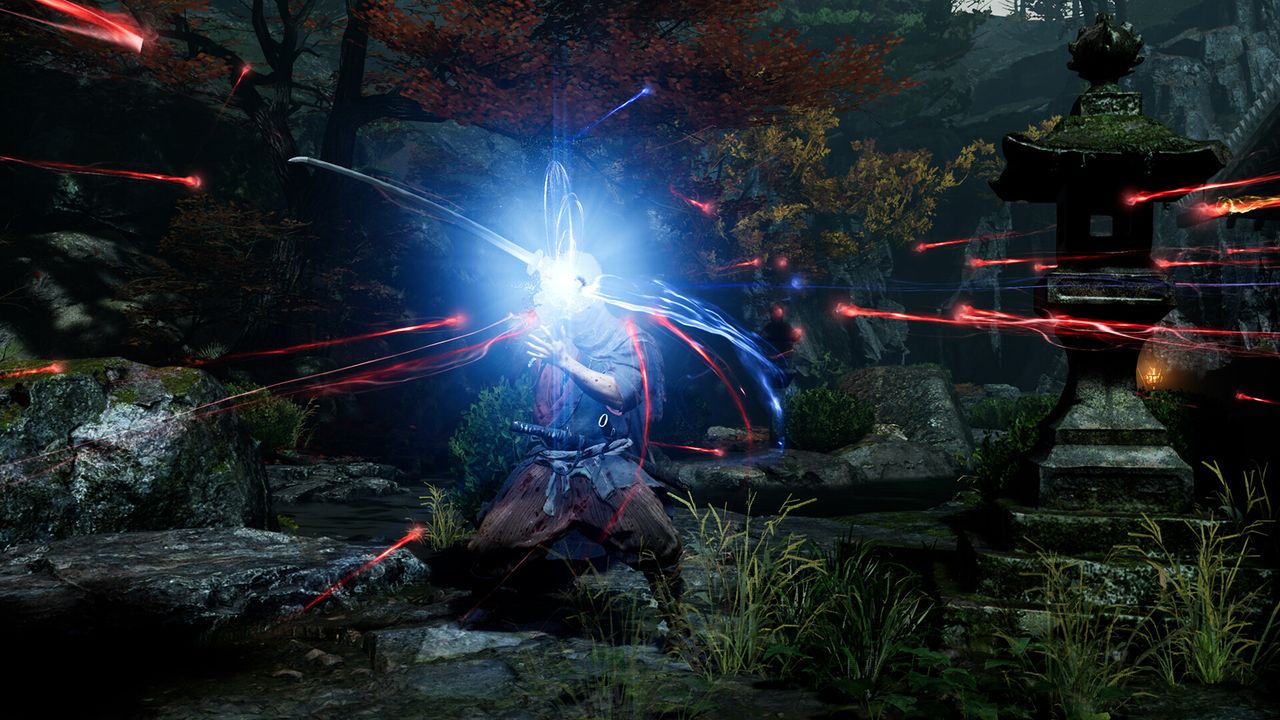
Onimusha: Way of the Sword doesn't need a high-end PC — independent performance testing found even older cards like the RTX 2080 Ti clearing 60 FPS at 1080p, and the game runs without stutters across a wide hardware range. Ray tracing gives a subtle visual upgrade that's genuinely hard to spot in most scenes, so it's the first thing to drop for FPS. Turn on DLSS or FSR upscaling before you start manually cutting individual settings — Balanced mode with a moderate sharpness value gets most of the performance benefit with little visible cost.
01The Game Runs Fine on Modest Hardware
Testing across a wide GPU range found every card handling 1080p comfortably, with even an older RTX 2080 Ti averaging 78 FPS. At 1440p, top-tier cards ran smoothly and paired well with adaptive sync, while mid-range cards such as the RX 6900 XT averaged around 68 FPS with occasional dips below 50. At 4K, top-end cards (RTX 4090/5080/5090, RX 9070 XT/7900 XTX) maintained 60+ FPS with sync enabled. If your GPU sits solidly mid-range, you shouldn't need to chase every setting down to Low — the game is not built to demand a high-end rig.
02Drop Ray Tracing First
Ray tracing is the single highest-impact setting on frame rate, and testers found the visual improvement it adds genuinely difficult to spot in most scenes, even in shadow-heavy areas. Unless you're specifically chasing screenshot-quality lighting, turning ray tracing down from High to Medium — or off entirely — is the best FPS-per-visual-quality trade in the settings menu.
03Turn On Upscaling Before You Touch Anything Else
Way of the Sword supports NVIDIA DLSS with multi-frame generation and AMD FSR 3.1. Enabling upscaling — Balanced mode with sharpness set to a moderate value works well — recovers a meaningful chunk of performance while keeping image quality close to native, which is a better first move than manually cutting several individual settings. Treat upscaling as your primary performance lever, and only start trimming other settings if you're still short of your target frame rate after enabling it.
04What Else to Lower if You Need More Headroom
After ray tracing and upscaling, the next settings worth reducing for performance, roughly in order of impact-to-visual-cost ratio, are:
- Shadow quality — drop from High to Medium or Low for a solid gain with limited visual cost outside of close inspection.
- Volumetric fog quality — lower from High to Medium; it's atmospheric more than functional.
- Texture quality — only worth reducing if you're VRAM-limited, since it costs memory more than raw GPU time.
- Motion blur and vignette — these have essentially no performance cost either way, but turning them off is worth doing for clarity regardless of your frame rate target.
- Sky/cloud quality — a low-impact setting on results, safe to keep at Low if you're squeezing out every frame.
Keep textures and meshes reasonably high if your VRAM allows it — texture pop-in is more noticeable than most of the settings above. Capcom's official spec sheet requires Windows 11, DirectX 12 and a 50GB SSD install with 16GB of system RAM across every tier. Minimum targets 1080p at 30 fps on a GTX 1660 (6GB) / RX 5500 XT (8GB) with a Core i5-8400 / Ryzen 3 3100; Recommended targets 1080p at 60 fps (with upscaling on) on an RTX 2060 Super (8GB) / RX 6600 (8GB) with a Core i5-10400 / Ryzen 5 3600. Capcom's sheet also lists higher High and Ultra presets for 1440p/4K play for players with more headroom to spare.
FAQ
Does Onimusha: Way of the Sword need a high-end PC?
No. Independent performance testing found even an older RTX 2080 Ti averaging 78 FPS at 1080p, and the game ran without stutters across a wide range of hardware. It's built to be accessible rather than demanding, unlike some other big-budget action titles at launch.
Is ray tracing worth turning on in Onimusha: Way of the Sword?
Probably not unless you have GPU headroom to spare. Testers found the visual difference from ray tracing genuinely hard to spot in most scenes, even shadow-heavy ones, while it's the single biggest setting for frame-rate cost — making it the first thing worth turning down.
Should I use DLSS or FSR in Onimusha: Way of the Sword?
Yes — the game supports NVIDIA DLSS with multi-frame generation and AMD FSR 3.1, and turning on upscaling (Balanced mode with a moderate sharpness setting) is a better first step for performance than manually lowering several individual graphics settings.
What are the PC settings I should lower first for more FPS?
Ray tracing first, since its visual benefit is subtle relative to its cost. After that, shadow quality and volumetric fog give the next-best performance-to-visual-impact trade. Motion blur and vignette cost nothing to disable and are worth turning off regardless of your target frame rate.
Sources
Where the facts on this page were checked. If one of them now says something different, we want to know — tell us and we will fix the guide.
New & updated guides ship every week. Follow the Atom feed or get notified when new Onimusha: Way of the Sword guides land.