Last updated: 5 September 2026
Marvel Rivals Best PC Settings Max FPS & Competitive Setup
Marvel Rivals runs on Unreal Engine 5, which is capable of producing excellent visuals — but most of those visuals have a significant FPS cost and provide zero competitive advantage. This guide covers the settings that matter for performance, the FOV and sensitivity values recommended by competitive players, and the quality options you can safely lower without affecting readability of the game.
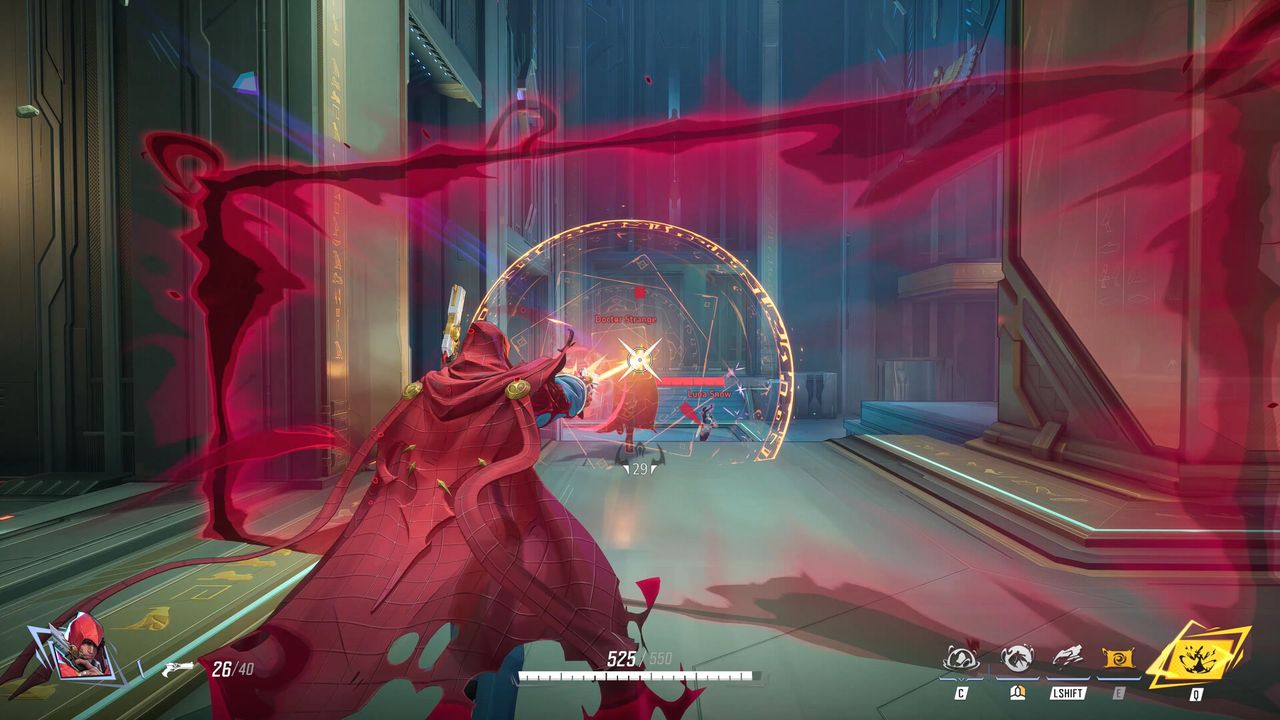
01Why Settings Matter in a Hero Shooter
Marvel Rivals is a fast-paced 6v6 hero shooter with frequent ability usage, rapid hero movement, and dense teamfight environments. At low frame rates or high input latency, tracking moving heroes — particularly fast flyers and wall-crawlers — becomes measurably harder. Settings optimised for performance reduce input delay, smooth out ability timing, and make target acquisition more consistent.
The key principle: turn down anything that adds processing cost without making enemies easier to see or track. Foliage density, dynamic shadows, and post-processing effects all cost FPS without providing competitive information. Keep settings that help you read the battlefield — character model quality, UI clarity — and cut everything else.
02Graphics Settings for Maximum FPS
Apply these settings in the Graphics section of the Options menu. Changes take effect immediately and can be adjusted between matches:
- Overall Quality: Set to Custom (do not use a preset — presets apply generic quality settings that won't match the optimised configuration below).
- Window Mode: Fullscreen or Borderless Window. Fullscreen gives slightly lower input latency; Borderless Window is easier for multi-monitor setups and alt-tabbing. Avoid Windowed mode in competitive.
- Resolution: Use your monitor's native resolution. Running at a lower resolution scales up incorrectly on modern displays and doesn't save as much FPS as reducing quality settings.
- V-Sync: Off. V-Sync introduces input delay of up to a full frame — turn it off entirely. If screen tearing bothers you, use G-Sync or FreeSync at the monitor level instead.
- Frame Rate Limit: Set to your monitor's maximum refresh rate, or uncapped if your GPU can exceed it stably. Targeting 10–20% above your refresh rate gives the frame buffer more room to stay above the cap.
- Anti-Aliasing: TAA at Low quality, or TSR at Low. Avoid MSAA — it is extremely expensive in UE5 and provides minimal visual benefit in motion.
- Upscaling Method: DLSS Quality (NVIDIA RTX cards) or FSR2 Quality (AMD / other cards). Quality mode keeps visuals clear while recovering 15–30% FPS. Avoid Performance and Ultra Performance modes — they introduce visible aliasing on hero models.
- Global Illumination: SSGI at Low. Critically: do NOT use Lumen. Lumen is UE5's high-end ray-traced global illumination — it costs 15–25% extra FPS and provides no competitive readability benefit. SSGI Low looks nearly identical in motion.
- Shadow Quality: Low or Medium. Shadows help read enemy positions behind thin cover, so do not turn them completely off — Low is the right balance.
- Texture Quality: Medium. Hero model textures are important for reading which hero you're fighting at range. Low makes characters harder to identify quickly.
- Effects Quality: Low. Particle effects look impressive but add significant GPU load and can obscure enemies during busy teamfights. Low still shows all ability effects, just at reduced particle counts.
- Foliage Quality: Low or Off. Foliage has no competitive value — grass density and leaf detail do not affect visibility of heroes or abilities.
- Post-Processing: Low. This controls bloom, lens flares, depth of field, and similar cinematic effects. Low keeps screen clarity high and removes visual noise during bright ability flashes.
03Field of View (FOV)
Unlike most PC shooters, Marvel Rivals does not give players an adjustable FOV slider — the camera's field of view is fixed and identical for everyone on PC, PlayStation, and Xbox. NetEase keeps it this way for competitive fairness: since the game supports full cross-play between mouse-and-keyboard and controller players, letting PC players widen their FOV would give them a real information advantage over console players who can't do the same.
The closest thing to an FOV adjustment is the Center Gap option in the crosshair settings. It doesn't change your camera's actual field of view, only how far apart the crosshair lines sit — a smaller Center Gap tightens your focus around the middle of the screen, while a larger one spreads the crosshair out. It's worth tuning to taste, but treat it as a crosshair preference, not a substitute for FOV.
If a video or guide claims Marvel Rivals has a numeric FOV slider (e.g. "set FOV to 110"), that setting doesn't exist in the game — don't spend time hunting for it in the options menu.
04Mouse Sensitivity and DPI
Mouse sensitivity in Marvel Rivals is expressed as an in-game sensitivity value combined with your mouse's hardware DPI setting. The competitive standard for both combined is measured in eDPI (effective DPI = in-game sensitivity × hardware DPI):
- DPI: 800 is the most common baseline among competitive hero-shooter players and a reasonable place to start — it's precise enough for fine aim adjustments without being so high that small hand movements cause overshoot.
- In-Game Sensitivity: Start low and raise it gradually. A commonly recommended starting point is roughly 1.2–1.5 in-game sensitivity at 800 DPI, which lands in an eDPI of around 800–1200 — a range widely cited as the competitive standard across hero shooters. Convert to a cm-per-360° figure if that's how you're used to tuning sensitivity, and adjust from there rather than treating any single number as mandatory.
- By role: There's no single verified 'correct' sensitivity per role, but the general pattern many players settle into is a lower eDPI for Vanguard (tank) heroes, since positioning and body-blocking matter more than fine flick-aim, and a somewhat higher eDPI for Duelists who need to track fast, mobile targets. Treat this as a starting bias to experiment from, not a fixed number.
Turn off Mouse Acceleration — disable 'Enhance Pointer Precision' in Windows mouse settings, and check the in-game options for any acceleration toggle too. Mouse acceleration changes how sensitivity scales with movement speed, making your aim inconsistent — a fast swipe covers more distance than a slow swipe at the same physical distance, which breaks muscle memory.
Polling Rate: Setting your mouse polling rate to 1000 Hz (standard on most gaming mice) is a safe general baseline for a fast-paced shooter. Higher polling rates (4000 Hz, 8000 Hz) are a marginal, unverified benefit at best for this specific game and not something to chase over more impactful settings.
05Network and Gameplay Settings
- Region: Always select your closest server region manually rather than relying on Auto. Auto can occasionally route you to a geographically farther server during off-peak hours.
- Colorblind Mode: If you have any colour vision deficiency, enable the appropriate mode (Protanopia, Deuteranopia, or Tritanopia). Even without a deficiency, some colorblind filters improve the contrast between ability effects and the environment in certain maps.
- Minimap Scale: Increase slightly from the default. The default minimap is small enough that flanking threats from off-screen positions can be missed. A slightly larger minimap gives more warning time for rotations.
- Crosshair: Use a simple dot or small cross. Large crosshairs cover targets and reduce hit confirmation accuracy. Dynamic crosshairs (that spread based on movement) provide inaccuracy feedback but can obscure targets at close range.
- Ability Hint Overlays: Turn off after you've learned your hero's ability ranges. They add on-screen noise during fights.
06Settings Summary
Quick reference for the most impactful changes:
- Global Illumination → SSGI Low (never Lumen in competitive)
- Anti-Aliasing → TAA Low or TSR Low
- Upscaling → DLSS Quality (NVIDIA) / FSR2 Quality (AMD)
- Effects Quality → Low
- Post-Processing → Low
- V-Sync → Off
- FOV → not adjustable (fixed for everyone); tune Center Gap in crosshair settings instead
- In-Game Sensitivity → start around 1.2–1.5 at 800 DPI (≈800–1200 eDPI), then adjust
- Mouse Acceleration → Off
- Mouse Polling Rate → 1000 Hz
FAQ
What are the best graphics settings for Marvel Rivals on PC?
Turn off V-Sync, set Global Illumination to SSGI Low (never Lumen), enable DLSS Quality (NVIDIA) or FSR2 Quality (AMD), set Effects and Post-Processing to Low, and keep Texture Quality at Medium for readable hero models. These changes provide the largest FPS gains without sacrificing competitive visibility.
What FOV should I use in Marvel Rivals?
There's no FOV setting to choose — Marvel Rivals doesn't have an FOV slider, and the camera's field of view is fixed and identical for every player on every platform. This is a deliberate design choice to keep things fair across the game's PC/console cross-play. If you want to tweak how your crosshair feels, the Center Gap option in crosshair settings is the nearest equivalent, but it changes crosshair spacing, not your actual camera view.
What mouse sensitivity is recommended for Marvel Rivals?
There's no single official number, but a common starting point among competitive hero-shooter players is 800 DPI with an in-game sensitivity around 1.2–1.5, landing at roughly 800–1200 eDPI. Treat that as a starting point to fine-tune, not a fixed target. Always turn off Mouse Acceleration ('Enhance Pointer Precision' in Windows, plus any in-game equivalent) to keep aim consistent.
Should I turn off V-Sync in Marvel Rivals?
Yes. V-Sync introduces up to one full frame of input latency (16 ms at 60 FPS, 8 ms at 120 FPS), which is noticeable in a fast hero shooter. Turn V-Sync off entirely. If you're bothered by screen tearing, use hardware-level solutions like G-Sync (NVIDIA) or FreeSync (AMD) at the monitor settings level instead.
Does DLSS or FSR help in Marvel Rivals?
Yes, significantly. DLSS Quality mode (for NVIDIA RTX GPUs) and FSR2 Quality mode (for AMD and other GPUs) both provide 15–30% FPS recovery at Quality settings with minimal visible difference in motion. Avoid Performance and Ultra Performance modes — they visibly degrade character models and make identifying heroes at range harder.
Why should I avoid Lumen in Marvel Rivals?
Lumen is UE5's ray-traced global illumination system and is one of the most expensive graphics features in the engine. In Marvel Rivals it costs 15–25% FPS compared to SSGI Low, with no meaningful competitive benefit — the lighting difference is barely noticeable in a fast-paced match. SSGI Low is the correct competitive setting.
Sources
Where the facts on this page were checked. If one of them now says something different, we want to know — tell us and we will fix the guide.
- How to Change FOV in Marvel Rivals Marvel Rivals Hub
- Marvel Rivals – Best Settings for FPS on PC SCUF Gaming
- Marvel Rivals PC Optimization & Settings Guide: How to Get More FPS PC Optimized Settings
- Best Mouse Sensitivity for Marvel Rivals (Find Your eDPI) WASD Life
- Marvel Rivals Sensitivity Converter / Calculator mouse-sensitivity.com
New & updated guides ship every week. Follow the Atom feed or get notified when new Marvel Rivals guides land.